

Pharos Mobile
Pharos Mobile: What If Your Classroom Had No Walls?
Pharos Mobile brings that freedom to your family. Save your student’s assigned lessons, and the calendar if your family uses it, to an iPad, a phone or a laptop, and keep learning with no internet connection. On a trail, on the road, or at a campsite, the lessons go where your student goes.

On an iPad, a phone or a laptop
It works when there’s no internet
Once you’ve saved lessons on the device, you can keep going with no connection. You choose which lessons to save. They stay on that device.
- Open saved lessons, including the text, the photos, and any packet PDFs you included.
- Follow the saved calendar, week by week, with Previous and Next. You can read it offline. Changing it needs a connection.
- Open your student’s tracker and work-sample list, if you saved them.
- Mark a lesson done, undo it, log it to the tracker, log an outside lesson, or remove an entry.
- Those changes wait on the device and sync when you’re back online, on their own or when you tap Sync now. If the same entry changed elsewhere later, the later change wins and you’ll see a notice.
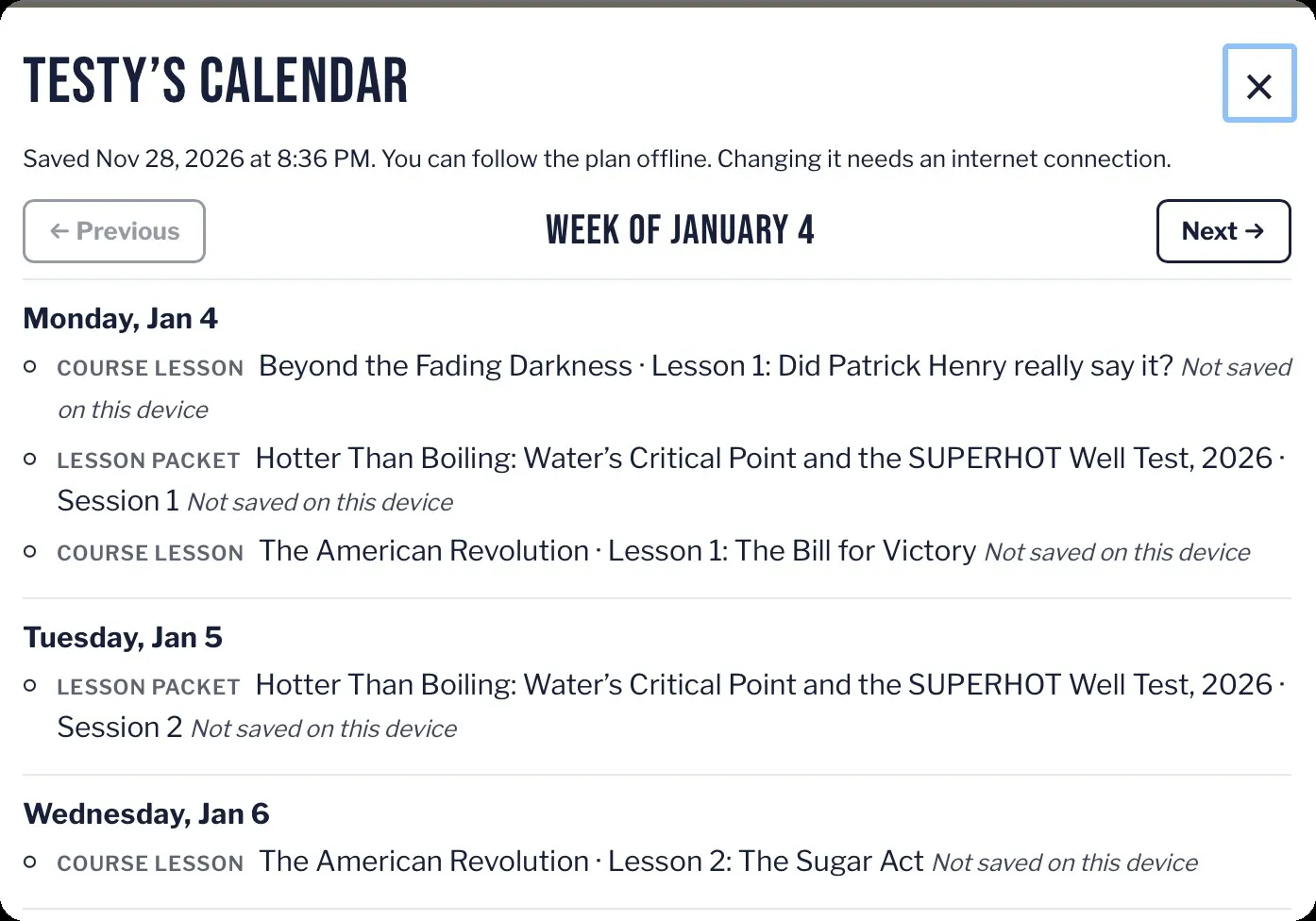
The saved calendar on an iPad, opened with no internet connection.
What still needs a connection
Some things wait until you’re back online
While you’re offline, you can’t edit the calendar, export a portfolio PDF, add or open work samples, use Reality Writes!, or sign students in. Use those when you have a connection again.
If you open the calendar while you’re offline, the page says you’re offline and points you to the saved calendar in the bar.
Waiting changes stay in that browser on that device, and clearing the site’s data before they sync loses them.
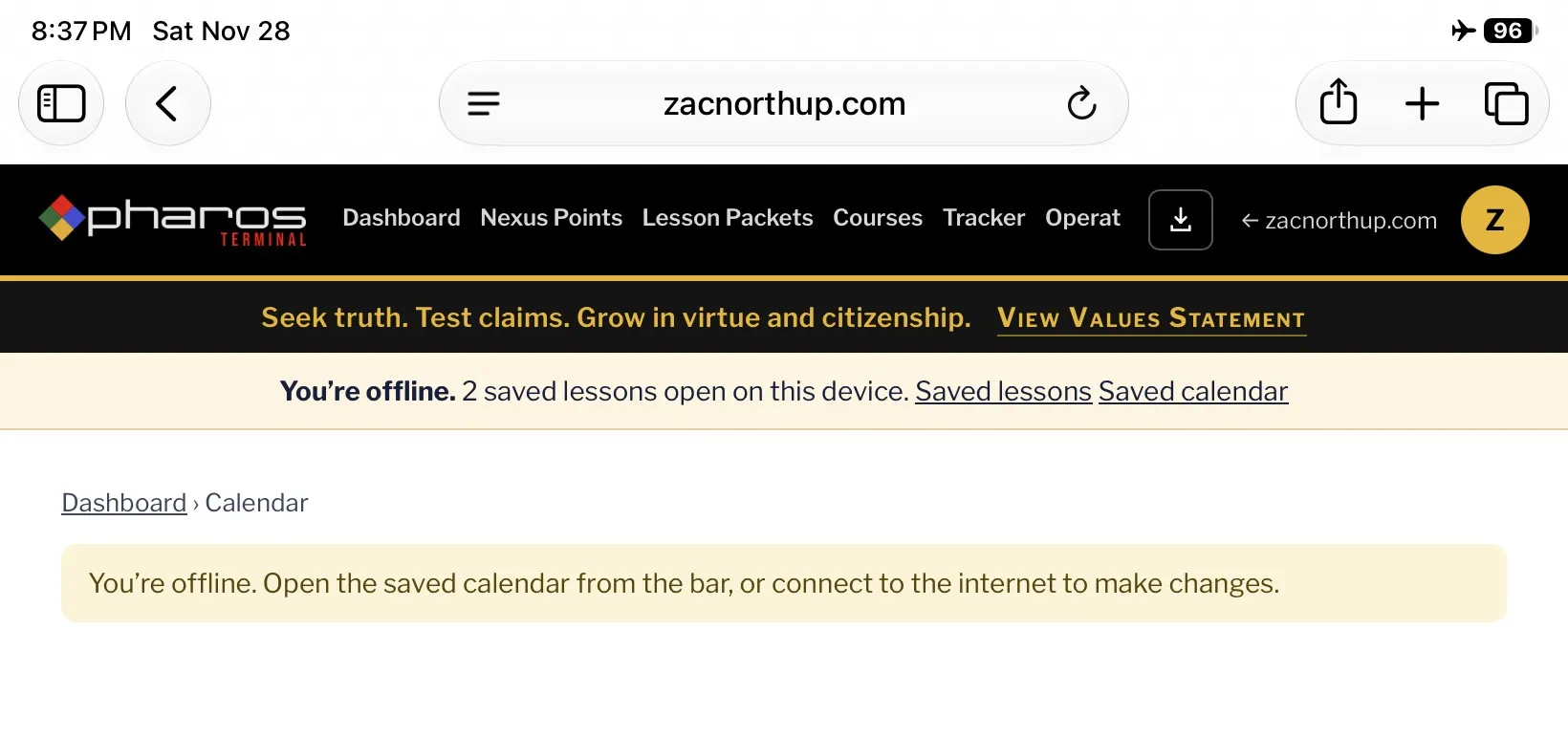
The calendar page on an iPad, in airplane mode.
Install Pharos Terminal
Put it on your Home Screen
You can keep using Pharos Terminal in the browser, or install it so it opens like an app. Open the Offline lessons window to get started. Included with Pharos Terminal.
On Chrome, Edge, or Android
In Pharos Terminal, open Offline lessons and choose Install app. It opens in its own window, with no browser bars, and your saved lessons open there too.
On iPhone or iPad
Add Pharos Terminal to your Home Screen so it opens like an app. Then open it from there and save your lessons again.
Sync any waiting changes first. Saved lessons in Safari don’t carry over to the Home Screen app.
Open Pharos Terminal in Safari and sign in, then:
- Tap the Share button (a square with an arrow pointing up). If you don’t see it, tap the menu button next to the address bar, then tap Share.
- Scroll down and tap Add to Home Screen. If it isn’t there, tap View More.
- Leave Open as Web App on, and tap Add.
If you’re not in Safari: To add Pharos Terminal to your Home Screen, open Pharos Terminal in Safari and follow these steps.
Why we built it
The Classroom Was Never Four Walls
Most of life’s important lessons happen outside a classroom. That belief drove StandWatch Academy, the educational nonprofit Zac Northup founded in 2016.
For five years, StandWatch students learned to plan and launch their own small businesses while traveling the country, meeting shop owners in small towns and CEOs in Silicon Valley. Days were for the road and the meetings. Coursework happened at night, wherever they stopped.
StandWatch Academy, 2018
In 2018 alone, our students:
- Wrote more than 40 business plans
- Traveled more than 5,000 miles
- Visited 13 states, 8 national parks and 4 national monuments
- Interviewed Silicon Valley CEOs

StandWatch Academy was a separate nonprofit. Pharos Terminal does not run trips or expeditions.
Travel and meetings

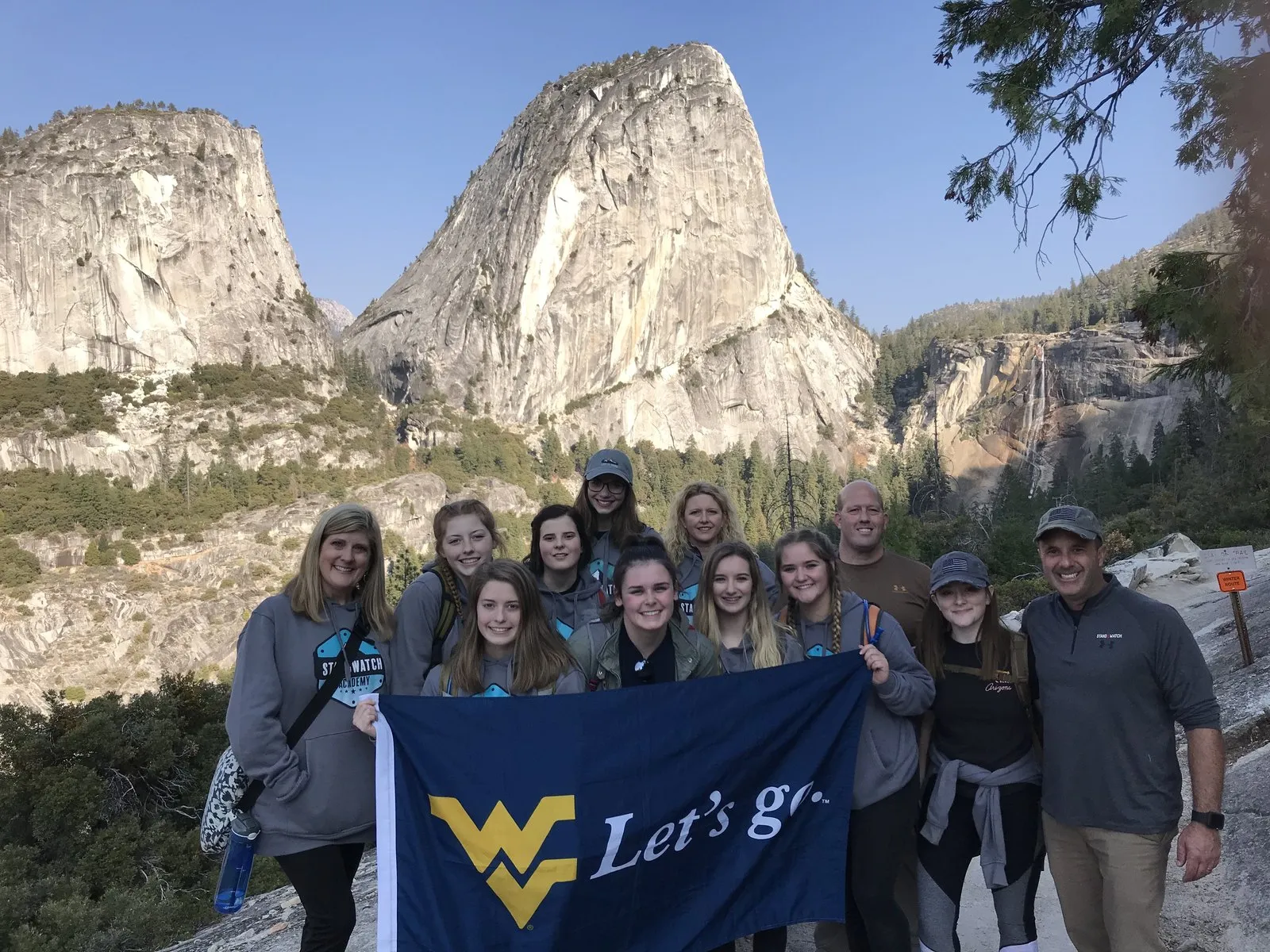

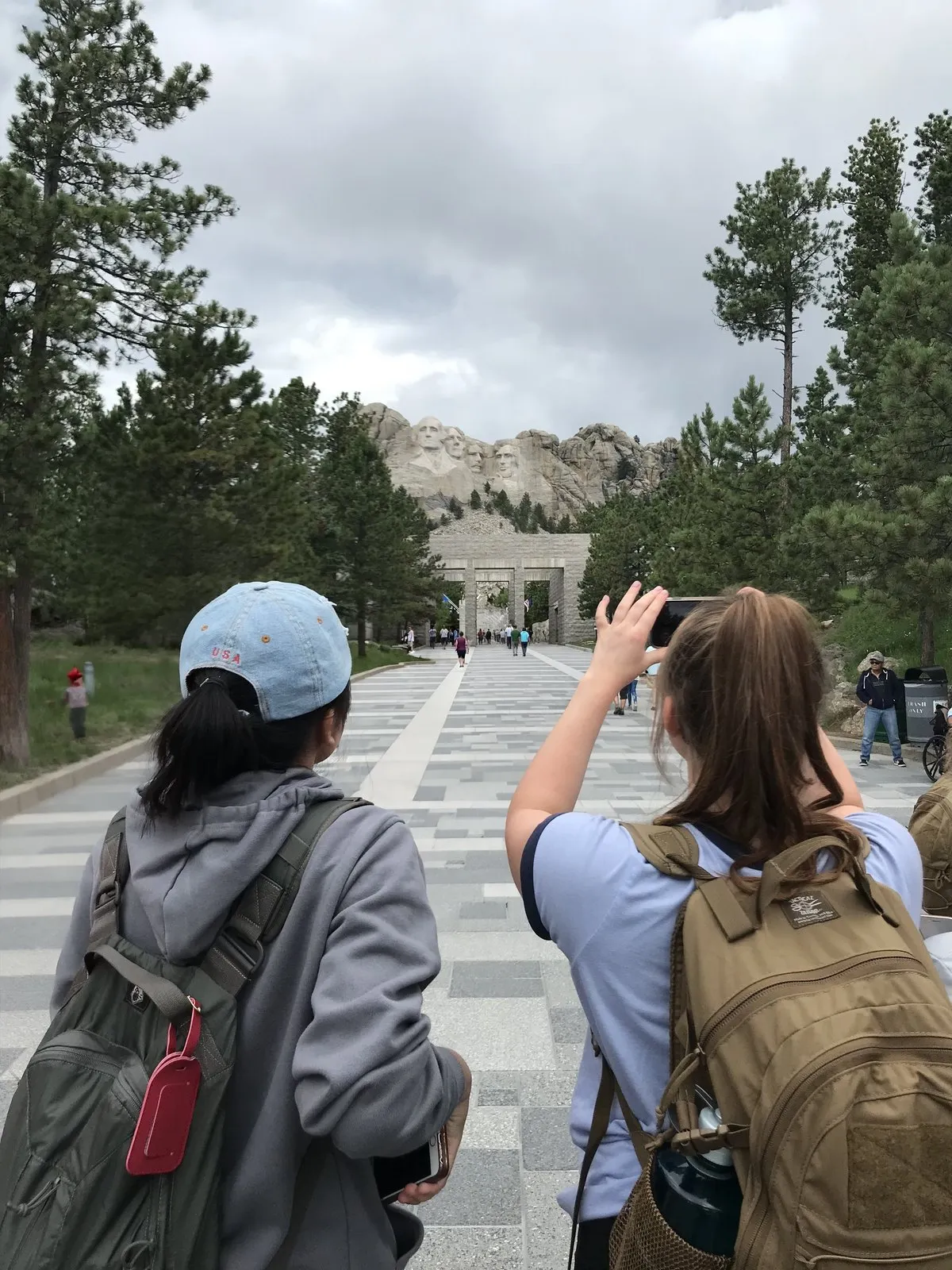
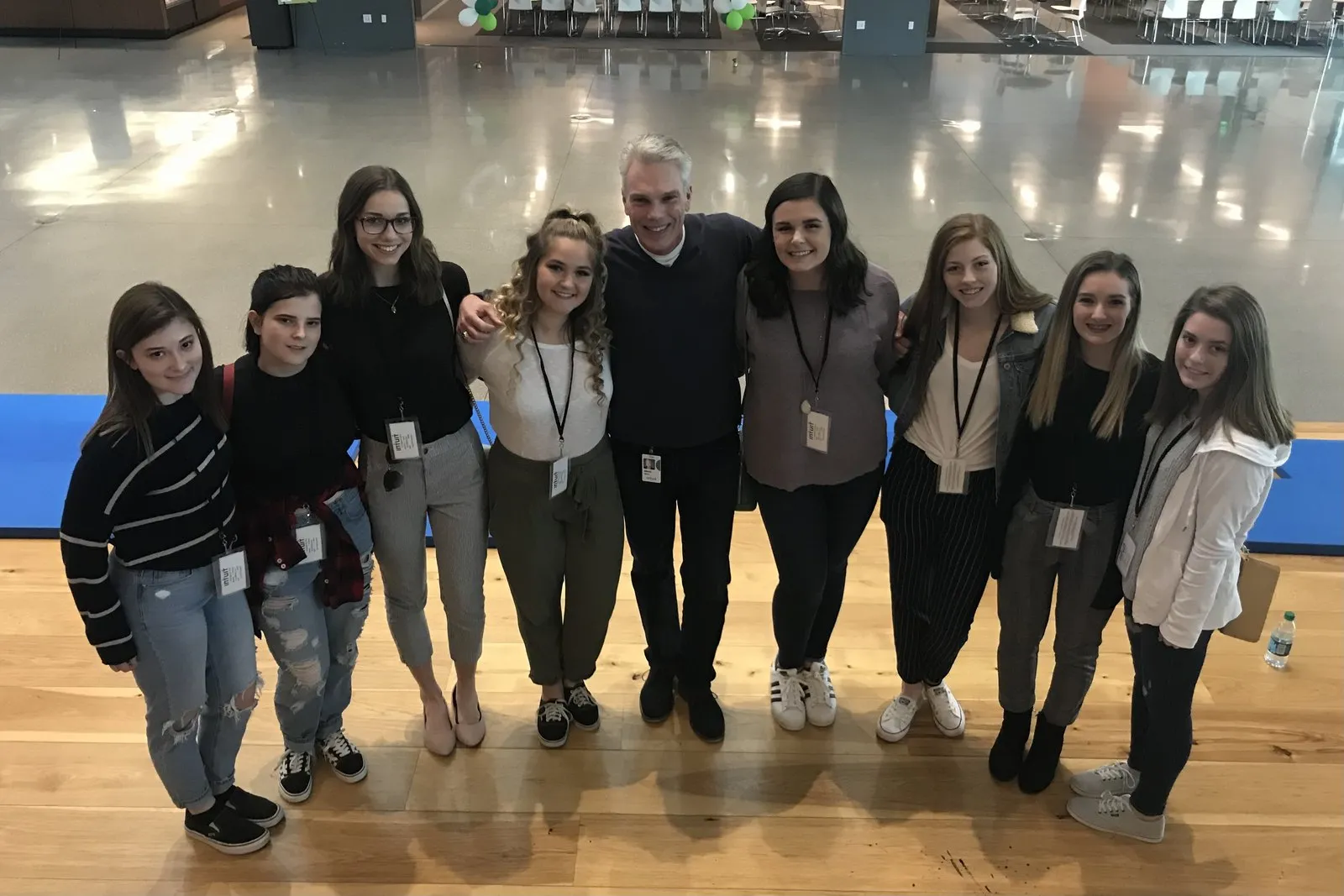
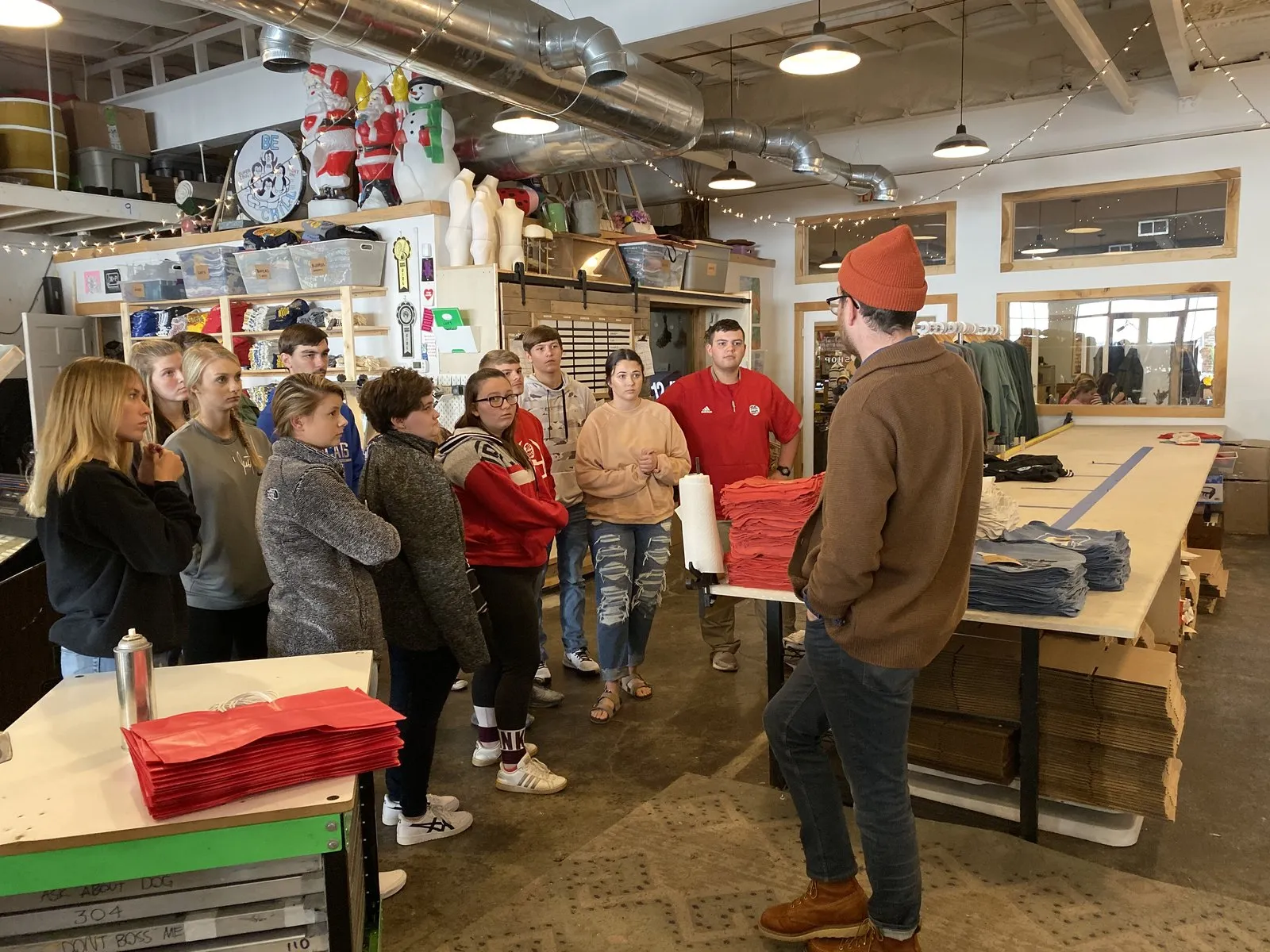

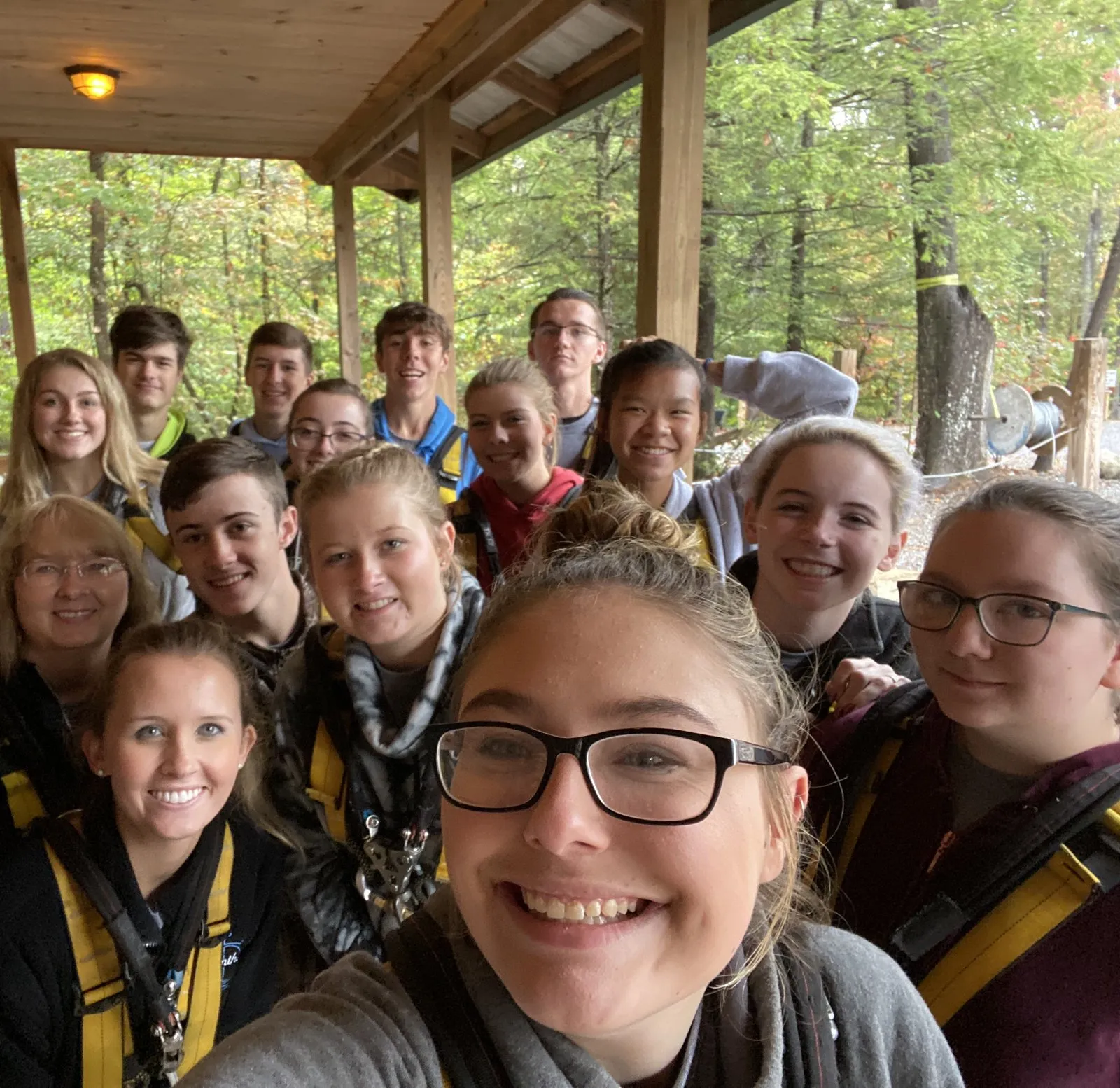
Their story was captured in a documentary film.
Watch the documentaryPharos Mobile
For families whose classroom has no walls and no roof
Save your student’s assigned lessons, and the calendar if your family uses it, to an iPad, a phone or a laptop, and keep learning with no internet connection. On a trail, on the road, or at a campsite, the lessons go where your student goes.