

Pharos Terminal · Grades 7–12
The Academic Calendar
Pick a grade and a start date, add days off and outside classes, and follow the next 10 school days.
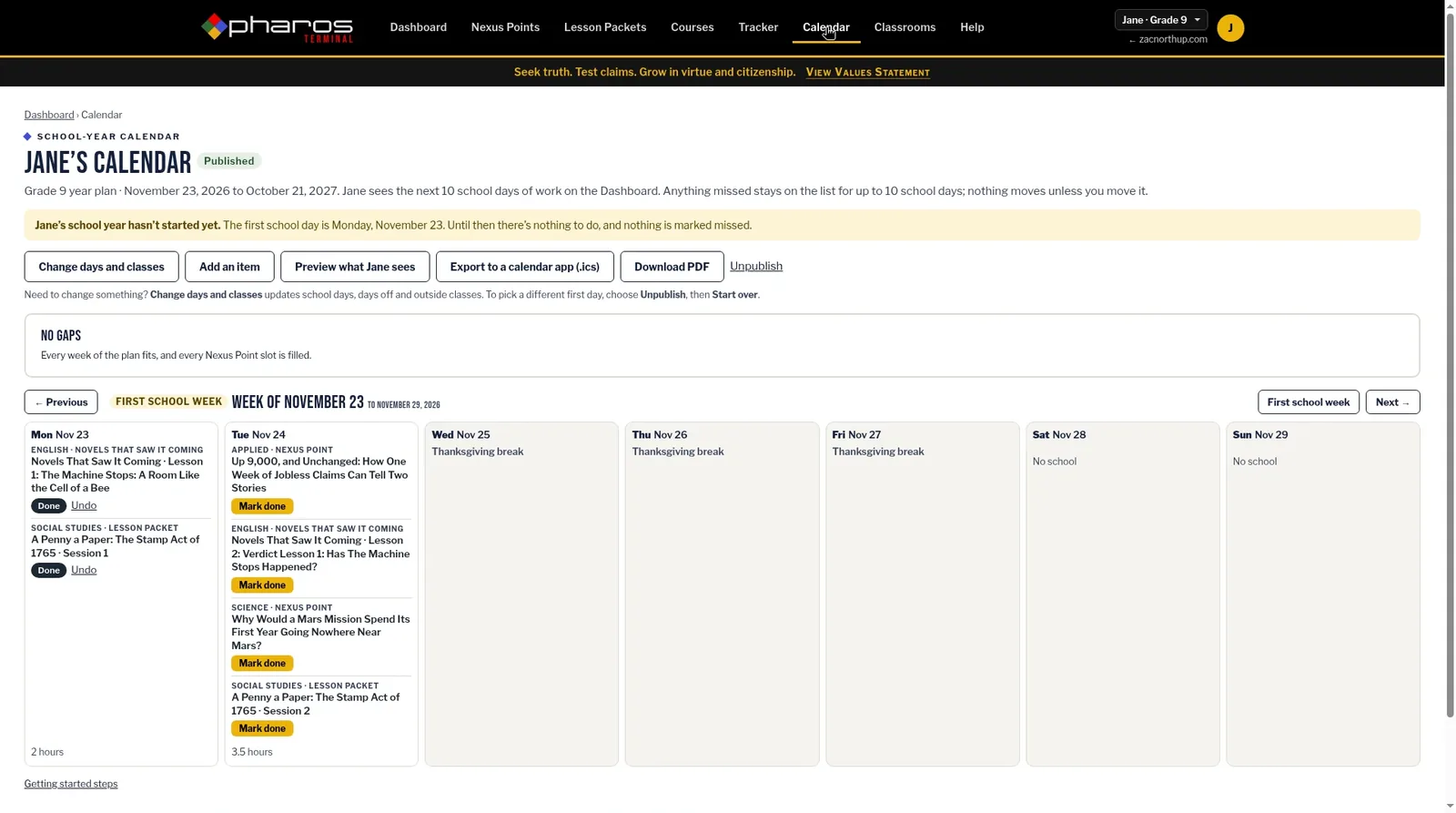
A published school-year calendar for Jane, Grade 9, opened on the first school week.
Getting started
How it works
You answer a few questions, one screen at a time. Pharos Terminal lays out the year from your student’s grade plan. Nothing reaches your student until you publish it.
Pick a grade and a start date
Choose a grades 7–12 year plan, the first school day, and which days of the week are school days.
Add days off and outside classes
Name holidays and breaks by date. Add outside classes — a co-op, a lesson elsewhere — so those days appear all year. You can mark them done as you go.
Follow the next 10 school days
Look the year over, then publish it. Your student sees the next 10 school days on their Dashboard. If the year hasn’t started yet, they see the first school week.
In the Terminal
What parents and students see
Parents plan and publish the year. Students see only the work in front of them.
What parents see
The Calendar tab opens on the current week, or on the first school week if the year hasn’t started. Each school day lists its course lessons, lesson packets, Nexus Points, and outside classes. You can change days and classes, add a family item, mark work done, or move a missed day forward after the year starts. You can also preview what your student sees, download a PDF, or export the calendar to an app.
What students see
On their Dashboard, students see the next 10 school days of work — or the first school week, until the year starts. They can mark a lesson done; you’ll see it as Done for their name. They never see the parent setup or the controls that change the plan.

The school-year card on the parent Dashboard, with a link to preview what Jane sees.
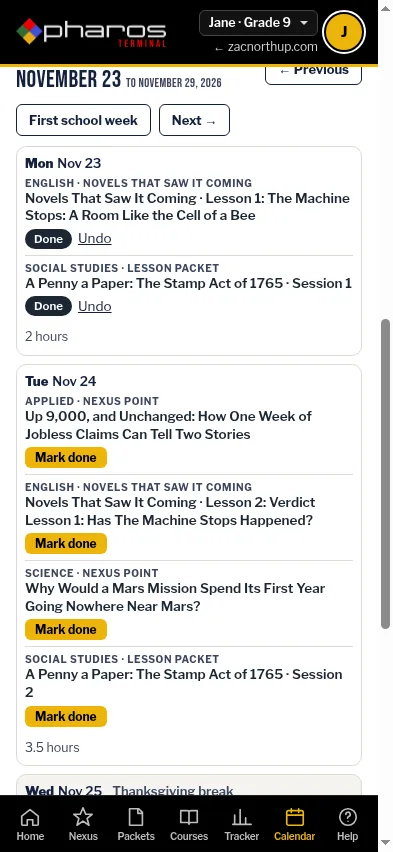
The same week on a phone.
Records as you go
The Tracker and the portfolio
The parent tracker logs lessons, hours and work samples as you go, keeps a standards-aligned record of each lesson, and exports a year-end portfolio when you need it.
Marking work done on the calendar writes the same Tracker entry as the lesson page, so nothing is marked done twice. Outside classes are logged as outside lessons. You can export the portfolio whenever you need it, not only at year’s end.
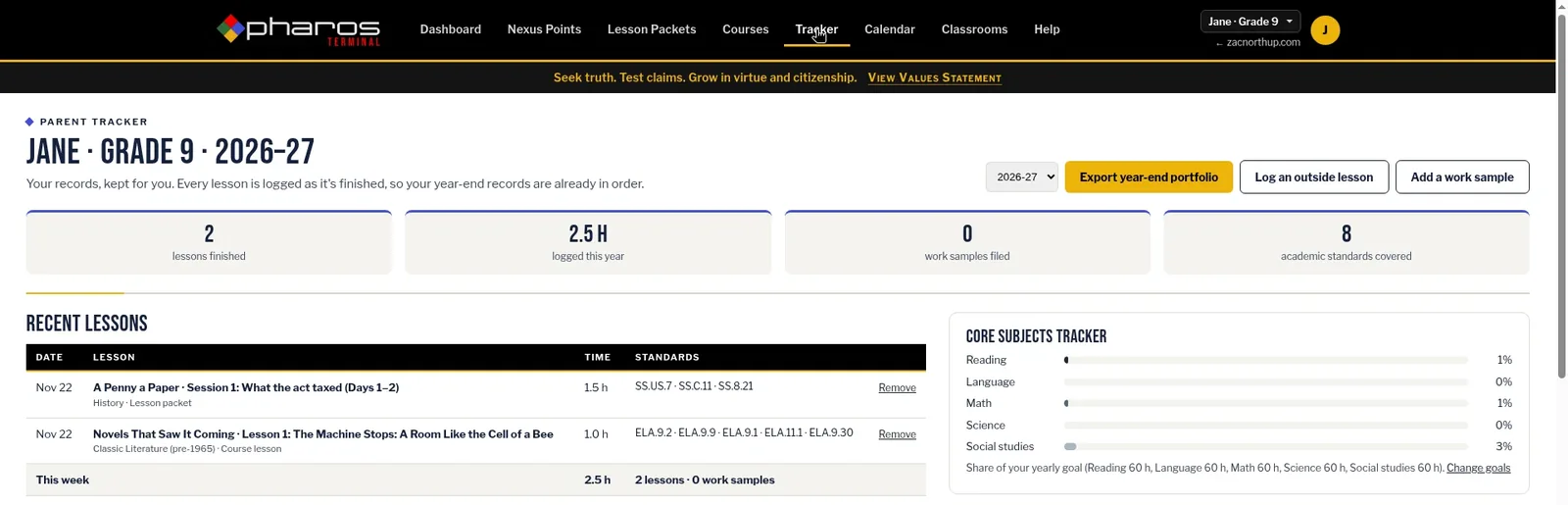
The Tracker for Jane, Grade 9. Export year-end portfolio is at the top, next to the school year.
Questions
A few short answers
Is the academic calendar a separate product?
No. It’s included with Pharos Terminal.
Which grades does it cover?
Grades 7–12. Each grade has its own year plan.
Will my student see the year before I publish it?
No. Nothing appears on their Dashboard until you press Publish.
Can I change the plan after I publish?
Yes. Change days and classes updates school days, days off, and outside classes. To pick a different first day, unpublish the plan and start over.
What if we miss a day?
After the first school day, “We missed today” slides work that’s still open later by the school days you choose. Work that’s already done stays where it is, and outside classes keep their own days.
Does Pharos Terminal send reminder emails?
No. Due and overdue work appears on the calendar, in Today’s plan, and under Your plan.
Pharos Terminal
The school year, laid out
Pick a grade and a start date, then follow the next 10 school days.